Back to Help Center

How can I edit my account details?

Claudiu R
Written byClaudiu R
body

Claudiu R

Community Expert
  • Email icon
  • Over 3 years of experience in customer support;
  • Bachelor's Degree in Journalism from the Spiru Haret University;
  • A strong understanding of gaming mechanics and tactics.
Vlad Mihalache
Edited byVlad Mihalache
body

Vlad Mihalache

Online Gambling and Crypto Casinos Specialist
  • Linkedin icon
  • Facebook icon
  • Email icon
  • Accomplished content strategist and editor with over 8 years of experience in the iGaming industry;
  • Certified Cryptocurrency Expert (CCE);
  • Specializes in blackjack strategies, slots, crypto casinos, and gambling addiction;
  • Bitcoin casino expert with extensive knowledge of crypto trading and blockchain gaming;
  • Online gambling expert with 7,000+ articles written and reviewed;
  • Strong advocate for responsible gambling with complex knowledge of the latest trends;
icon-calendarUpdated on Oct 9, 2025

On Chipy.com, you can personalize your profile and avatar to make your account truly unique. Here is how you can edit your account details, step-by-step:


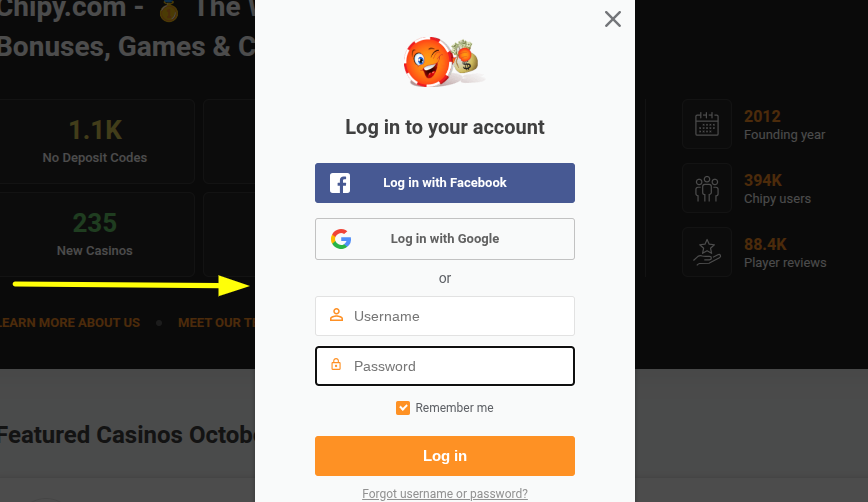
Step 1 - Log in on Chipy.com

Before you can edit your account details, you need to log in. You can do that by pressing the “Log in” button located in the top-right corner of the display.

help center edit account details login

Don’t have a Chipy account yet? Learn how to create a free Chipy.com account

Step 2 - Navigate to “Settings”

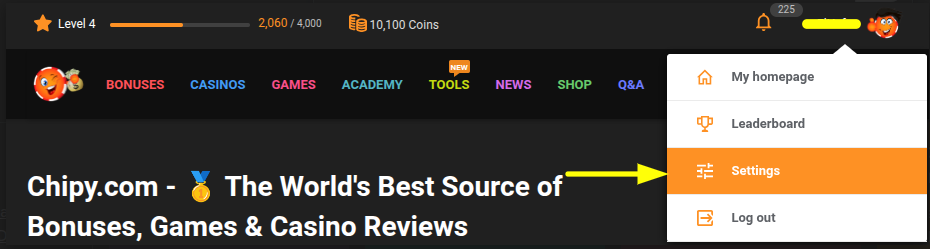
Once you’ve successfully filled in your account details and logged in, hover over your username in the top-right corner to view the user menu.

Choose “Settings” and you will be redirected to a page that allows you to configure your account.

help center edit account details settings

Please note: On mobile, you have to click on the Chipy avatar in the top right corner to access the settings menu.

Step 3 - Edit your details

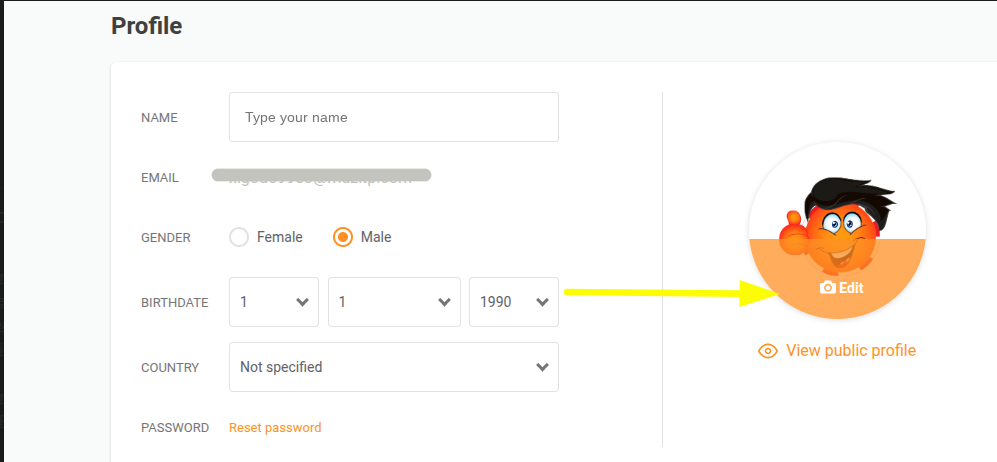
In the “Profile” area, you can edit several account details, including:

  • Name

  • Gender

  • Birthdate

  • Country

  • Password Reset

  • Avatar

To begin editing, you need to click the orange “Edit details” button and make the necessary adjustments.

help center change my avatar edit avatar

Please note: When you click on “Reset password”, we will automatically send you an email with the reset instructions.

Step 4 - Save the details 

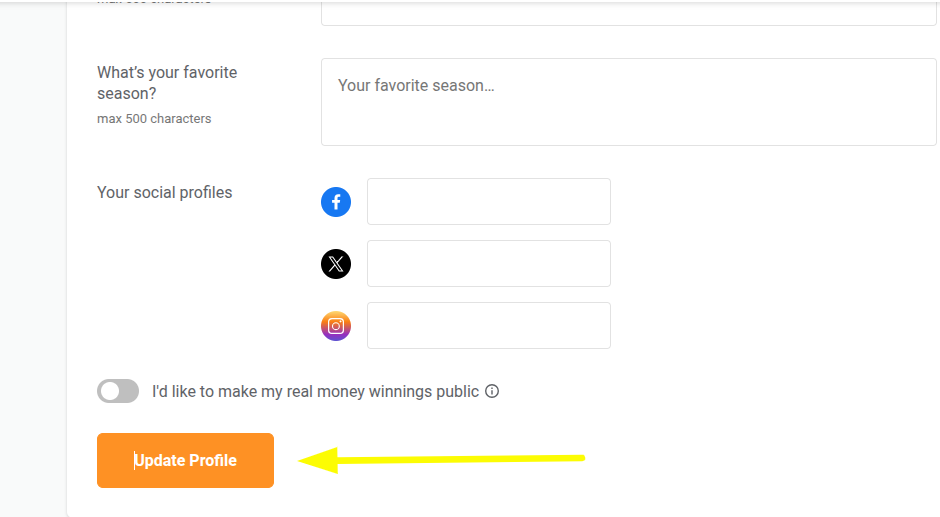
Once you’ve completed your account details, all that’s left is to save them. Click the orange “Update Profile” button and your information will be instantly updated.

help center edit account details update profile

That’s it!

If you’ve followed every step above, your account details will be updated.

Remember: You can also edit your Chipy avatar from the Profile window. We have created a dedicated guide for editing your avatar.

Was this article helpful?

68% found this helpful
icon-check-greenThank you for voting
You have already voted
Claudiu R

Claudiu R

Community Expert

  • Email icon

About Claudiu R

  • Over 3 years of experience in customer support;
  • Bachelor's Degree in Journalism from the Spiru Haret University;
  • A strong understanding of gaming mechanics and tactics.
Read Full Bio
Vlad Mihalache

Vlad Mihalache

Online Gambling and Crypto Casinos Specialist

  • Linkedin icon
  • Facebook icon
  • Email icon

About Vlad Mihalache

  • Accomplished content strategist and editor with over 8 years of experience in the iGaming industry;
  • Certified Cryptocurrency Expert (CCE);
  • Specializes in blackjack strategies, slots, crypto casinos, and gambling addiction;
  • Bitcoin casino expert with extensive knowledge of crypto trading and blockchain gaming;
  • Online gambling expert with 7,000+ articles written and reviewed;
  • Strong advocate for responsible gambling with complex knowledge of the latest trends;
Read Full Bio

Report a problem

Couldn't find what you were looking for?

Contact our Support Team at support@chipy.com. We would be happy to help you.

Contact Us
icon-arrow-up