


 Casinos
 Bonuses


 Thank you for voting
Couldn't find what you were looking for?
Contact our Support Team at support@chipy.com. We would be happy to help you.


 Updated on Apr 27, 2026
Payment methods define the way you prefer to receive your real money winnings from Chipy.com. The winnings include raffles prizes, real money shop items, and monthly competition rewards.
Examples of payment methods include e-wallets like PayPal and Skrill.
You can set up one or more payment methods and define your favorite one. Your winnings will be transferred to your favorite payment method account upon your confirmation.
We cannot transfer you your real money winnings if you have no verified payment details set up.
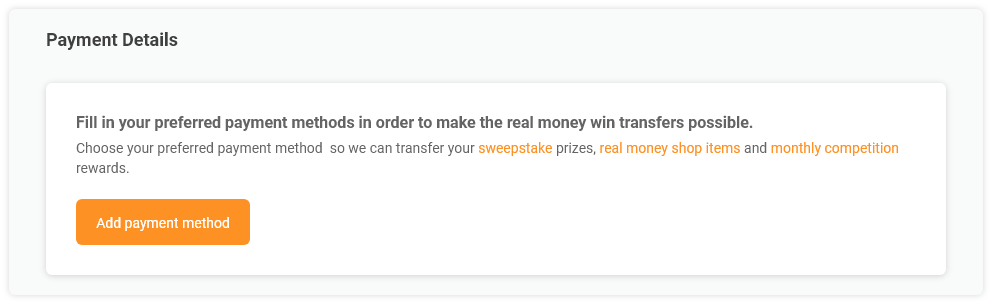
You can set up your payment details in the “Payment Details” section, on the “User Settings” page.
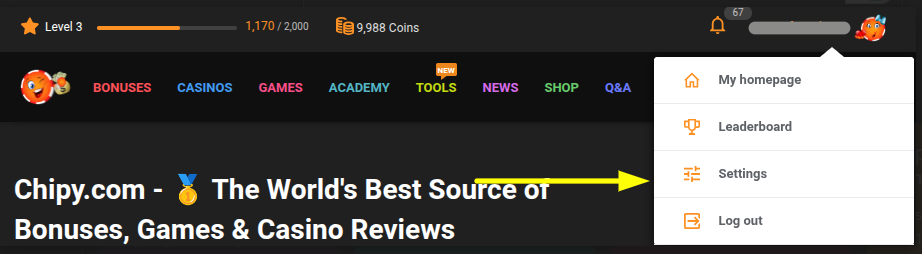
Filling in your payment details is a fast and easy process. All you have to do is follow the steps down below:
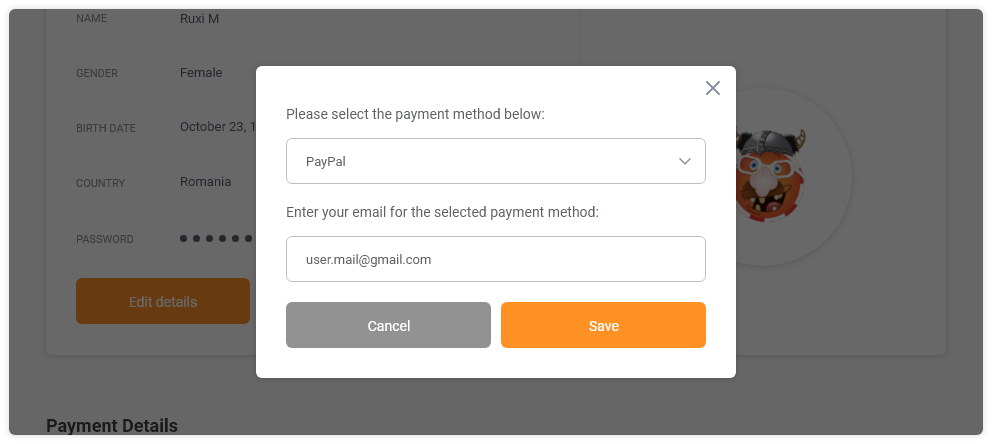
You can choose between PayPal and Skrill.
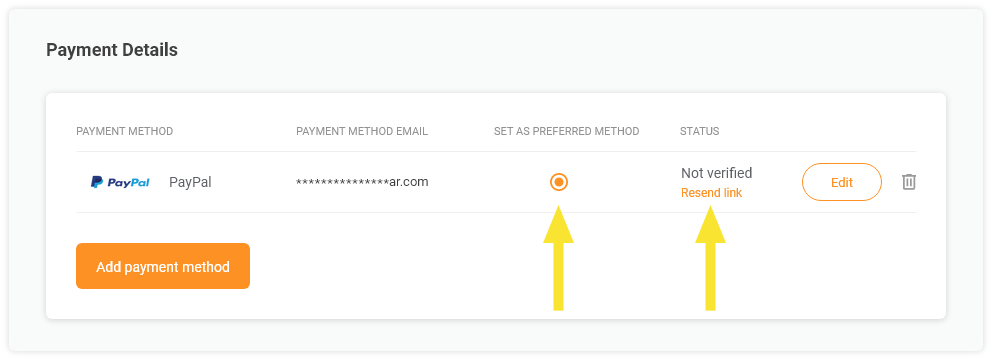
The payment method you added will be displayed in the Payment details section and it will automatically be marked as your favorite payment method:
 Chipy.com will not, in any circumstances, require you to disclose your e-wallets passwords. We strongly advise you to keep your passwords private and secure at all times.
Step 3. Verify the payment via email.
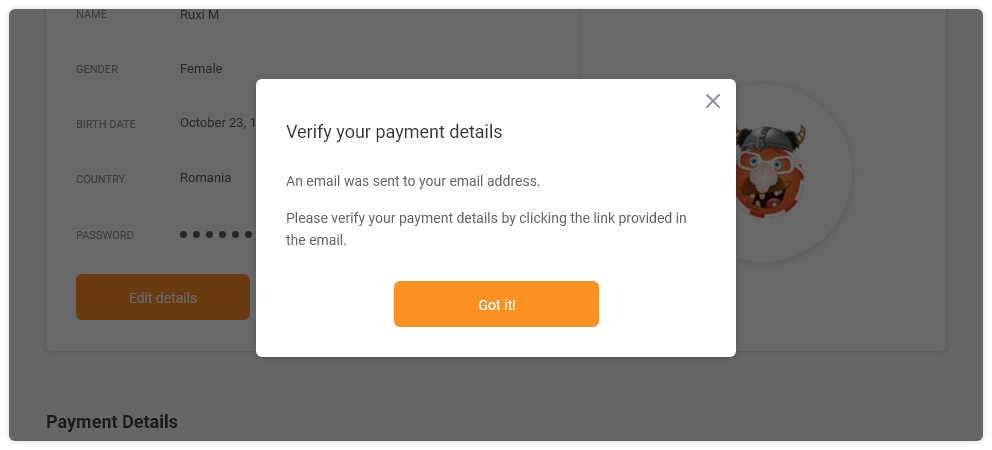
Check your inbox for the verification email (make sure you also check your Spam folder). Open the email and click on the “Verify your payment details'' link. The verification process is now completed.
In your User Settings page, the status of your payment method will change from “Not verified” to “Verified”:

If you did not receive the email you can request to be sent another verification email by clicking on the “Resend link”. A new verification email will be sent to your inbox. Make sure you also check your Spam folder.
You can add 2 payment methods:
PayPal
Skrill
If you choose to have one payment method, it will automatically be marked as your favorite payment method. However, if you want to use more than one payment method, you need to mark your favorite one.
You can edit or delete your payment details in the “Payment Details” section, on the “User Settings” page.
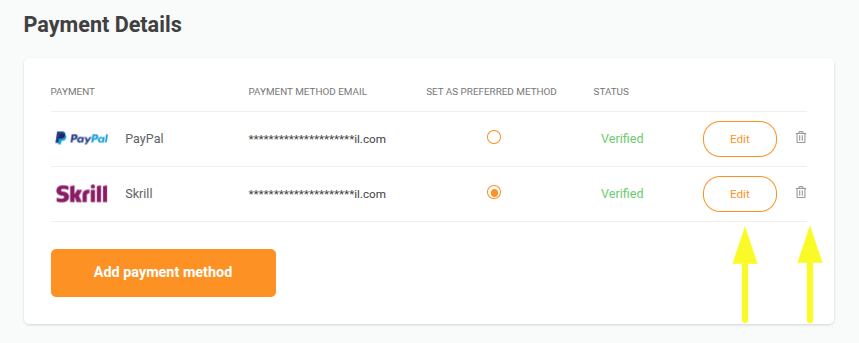
Use the “Edit” option if you want to update your email address for that particular payment method; after you edit a payment method, you need to verify the changes via email for security reasons;
If you want to delete a payment method from your list click on the trash icon; the payment method will be removed from your list
If you want to use more than one payment method, make sure you mark your favorite one. By default, the first payment method you add is marked as favorite. You can change your preferred payment method at any point.

Knowing how to properly go through this process is a very important step, and we hope everything is more clear now that you’ve explored our guide.
If you have any questions or concerns, please feel free to contact us at support@chipy.com. We will be happy to help.
Couldn't find what you were looking for?
Contact our Support Team at support@chipy.com. We would be happy to help you.
